

You listed a fantastic piece of inventory, but suddenly you realize you need to pull it down immediately. Whether you successfully cross-listed the item and it sold on a different marketplace, you spotted a massive rip in the fabric right before bagging it, or you simply made a pricing typo, figuring out exactly how to delete an eBay listing is an essential skill for any serious e-commerce seller.
The platform's interface goes through updates constantly, and the rules surrounding when you are legally allowed to end a listing can be a minefield. Let’s jump straight into the updated 2026 steps to pull your items down safely, protect your seller metrics, and keep your business running smoothly.
📌 TL;DR: The Fast Track to Ending a Listing
Need to pull a listing down right this second? Here is your quick, step-by-step summary:
- Desktop Method: Go to Seller Hub > Active Listings > Check the box next to your item > Click "End Listing" from the top Actions menu > Select your reason.
- Mobile App Method: Tap "Selling" > Tap "Active" > Tap the three dots next to the item > Select "End Item" > Choose your reason.
- Fixed Price Listings: You can end a "Buy It Now" listing at absolutely any time without penalty, as long as it hasn't already been purchased.
- Auction Listings: Ending an auction is strictly regulated. If there are bids and less than 12 hours remaining, you generally cannot cancel the listing without selling to the highest bidder or facing fee penalties.
- The "Out of Stock" Alternative: If you plan on restocking a multi-quantity item, use the Out of Stock feature rather than deleting the listing entirely to preserve your search ranking history.
The Desktop Guide: Navigating Seller Hub

If you treat reselling like a full-time business, you are probably spending the majority of your time staring at a computer monitor using eBay's Seller Hub. The desktop interface gives you the most control over your inventory, allowing you to manage single or bulk deletions effortlessly.
Here is the exact workflow for pulling down your merchandise from a computer browser in 2026:
Step 1: Access Your Active Inventory
Log into your account and navigate directly to your Seller Hub dashboard. Hover over the "Listings" tab at the top of the page and click on "Active" from the drop-down menu.
Step 2: Locate the Target Item
If you have a massive closet of thousands of items, use the search bar to type in the exact title or SKU. Once you find the specific garment or hardgood you need to remove, click the small, square checkbox located on the far left side of the item row.
Step 3: Trigger the Deletion
Once you check that box, a blue action bar will appear at the top of your list. Click the button that says "Actions" (or look for the "End" button depending on your specific layout view). From that dropdown menu, click "End Listing."
Step 4: Select Your Justification
eBay does not just let items disappear without asking why. A pop-up window will appear forcing you to choose an official reason for removing the merchandise. Your options typically include:
- The item is no longer available for sale.
- There was an error in the listing.
- The item was lost or broken.
- The starting price or reserve price was incorrect.
Select the one that best applies, click confirm, and your item is officially removed from the marketplace.
Doing It On The Go: The Mobile App Method

But also, let's be honest, we all know the reality of retail arbitrage and thrifting: you are rarely sitting at a desk. You are constantly on the move. If you are standing in line at the post office and get a notification that your vintage jacket sold on Depop, you need to pull it off your other platforms immediately using your phone.
The eBay mobile app handles this process beautifully. Here is the fast mobile workflow:
Step 1: Open the Selling Dashboard
Launch the app on your smartphone and ensure you are logged in. Tap the "Selling" icon located at the bottom of your screen to pull up your main dashboard.
Step 2: Access Live Listings
Tap on the "Active" tab to view everything currently live in your store. Scroll through your feed or use the magnifying glass to search for the specific piece.
Step 3: Open the Action Menu
To the right of the item you wish to remove, you will see three small vertical dots (the universal menu icon). Tap those dots to open your listing options.
Step 4: End the Item
Scroll to the bottom of that pop-up menu and tap "End Item." Just like on the desktop version, the app will prompt you to select a reason for the cancellation. Tap your reason, hit submit, and the item will instantly be moved to your "Unsold" folder.

The Danger Zone: Auctions vs. Fixed Price
The actual button-clicking process of deleting a listing is easy. The complicated part of this process revolves around what type of listing you created. eBay treats "Buy It Now" (Fixed Price) listings and traditional Auctions as two entirely different business models, with completely different legal obligations.
Terminating a Fixed Price Listing
If you listed a pair of sneakers for a set price of $100 using the "Buy It Now" format, you hold all the power. You can end that listing on day one, day fourteen, or day twenty-nine. As long as a buyer has not clicked the buy button and initiated a transaction, you can delete it without any fear of penalties, fees, or account strikes.
Terminating an Auction Listing (The Complicated Web)
eBay built its entire empire on the excitement of the auction clock. Because auctions require buyers to invest their time and emotion into bidding, eBay strongly discourages sellers from pulling the rug out from under them. Your ability to delete an active auction depends entirely on the clock and the current bid count.
Scenario A: More than 12 hours remaining, NO bids.
You are completely in the clear. You can end the auction early without any penalty.
Scenario B: More than 12 hours remaining, WITH bids.
You are allowed to cancel all current bids and end the listing entirely. However, eBay considers this a massive disruption to the buyer experience.
Because of this, they may charge you a Final Value Fee based on the highest bid at the exact time you canceled. (For example, if the highest bid was $50 when you deleted it, you owe eBay the percentage fee on that $50, even though you didn't sell the item).
You are granted one "free pass" per calendar year for this scenario, but after that, expect to pay the fee.
Scenario C: Less than 12 hours remaining, NO bids.
You are safe to delete the listing early without penalty.
Scenario D: Less than 12 hours remaining, WITH bids.
You are legally locked in. You cannot delete the listing. Your only option is to sell the item to the highest bidder when the clock runs out. If the item was genuinely destroyed (like your dog chewing up a rare shoe right before the auction ends), you have to let the auction finish, contact the winning bidder, apologize profusely, and process a formal order cancellation.
Why Deleting Listings Can Hurt Your Store
Many new resellers treat their active inventory like a rough draft, constantly ending listings, tweaking the titles, and starting them over from scratch hoping for a better search algorithm boost. This is a massive strategic mistake.
eBay's "Cassini" search algorithm tracks your historical data. When you have a fixed-price listing that has been active for a few months, it slowly gathers valuable search impressions, watchers, and views. The algorithm learns what types of buyers click on your item.
When you completely delete that listing, you permanently destroy all of that historical data. If you decide to relist the item a week later, it starts at absolute zero. All the watchers are gone, and the algorithm has to re-learn how to rank your item.
⚠️ Unless an item is permanently gone from your physical possession, you should avoid deleting it at all costs.
The "Out of Stock" Alternative
If you sell multiple quantities of the same item (like wholesale boutique jewelry or retail arbitrage cosmetics), never delete your listing just because you sold out of your current batch.
Instead, go into your account settings and turn on the "Out of Stock" feature. When your quantity hits zero, eBay simply hides the listing from public search results, but it remains "Alive" in your backend dashboard.
When you finally restock your inventory three weeks later, you simply change the quantity back to 10. The listing goes live again, retaining all of its previous sales history, watchers, and algorithm rank, giving you an immediate boost over your competitors.
The Art of the "Bulk Delist and Relist"
There is one major exception to the rule of preserving your history: stale inventory. If a vintage sweater has been sitting in your store for over 365 days, the algorithm considers it stagnant. At this point, the historical data is actually hurting you.
Many successful full-time sellers practice a strategy called the "Bulk Delist and Relist." Every 60 to 90 days, they go into their Seller Hub, highlight everything that hasn't sold, and delete it in bulk. They then use the "Sell Similar" function to create a brand new listing. This strategy gives the item a fresh, newly-listed algorithm boost.
However, doing this manually on eBay is incredibly tedious and time-consuming.
Stop Wasting Time: Automate Your Inventory Deletions
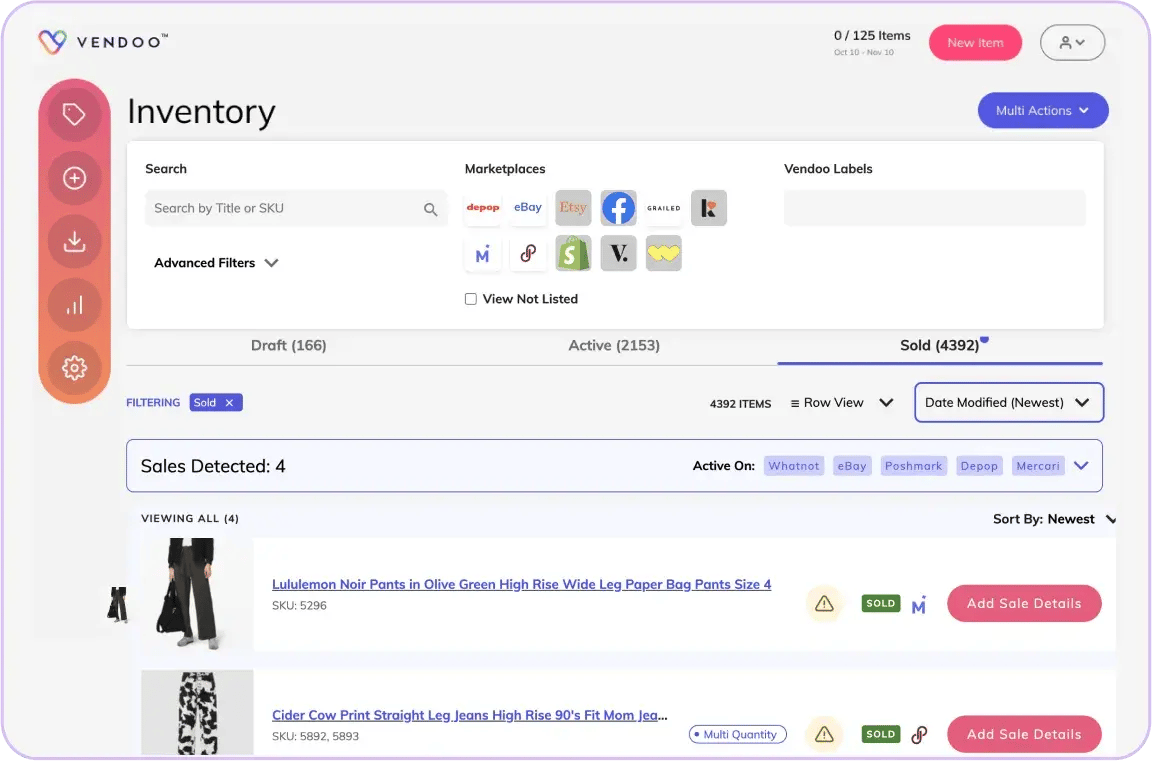
If you are treating your reselling operation like a true business, you shouldn't be relying on one single marketplace. If you're practicing eBay cross listing, you are probably listing your items on eBay, Poshmark, Mercari, and Depop simultaneously to maximize your reach.
But multi-channel selling introduces a massive logistical nightmare: double selling. When a high-demand graphic tee sells on Poshmark while you are asleep, you have to wake up, log into your computer, frantically navigate to your eBay Seller Hub, click through the menus, and manually delete the listing before someone else buys it.
If you are tired of playing this stressful game of digital whack-a-mole, you need to integrate Vendoo into your daily workflow.
Managing your deletions through a centralized inventory system changes everything.
- Instant De-listing: When you need to pull an item down, you simply click the "Delist" button inside your master inventory dashboard. Our software reaches out and instantly pulls that listing down from every single marketplace you are connected to.
- Automated Sale Detection: You never have to worry about waking up to a double-sale again. The second an item is purchased on one platform, the system detects the transaction and automatically ends the active listings on your remaining platforms.
- Effortless Inventory Refresh: Want to execute that "Delist and Relist" strategy to wake up your stale inventory? You can bulk select 50 items and refresh them across all your connected marketplaces with a few simple clicks, saving you hours of repetitive manual data entry.
Protect your seller metrics, prevent frustrating order cancellations, and let an intelligent eBay listing software handle your active inventory management.
Frequently Asked Questions
Does deleting a listing on eBay cost me money?
If you delete a fixed-price listing, you will not be charged any extra fees. However, you will not receive a refund for any insertion fees or listing upgrades (like promoted listing fees or bold title fees) you paid when you originally created the draft.
Where do my deleted eBay items go?
Once you end a listing, it does not vanish into thin air. It moves into the "Unsold" section of your Seller Hub or the "Ended" section of your mobile app. eBay will store this data for a maximum of 90 days, allowing you to easily relist the item if you change your mind. After 90 days, it is permanently purged from the system.
Can a buyer still see a deleted listing?
Yes, but only if they have a direct link to it, or if it was saved in their "Watched Items" list. If they navigate to the URL, they will see a banner across the top of the page explicitly stating: "This listing has ended." They will not be able to interact with it or purchase it.
I accidentally deleted the wrong item! Can I undo it?
There is no magical "undo" button. However, because the item is temporarily saved in your "Unsold" folder, you can simply navigate to that folder, locate the mistake, and click "Relist." Be aware that this creates a brand new listing ID, and any previous watchers will not be transferred over to the new active listing.
Does ending listings frequently lower my overall seller rating?
Simply ending a fixed-price listing does not directly impact your Top Rated Seller status or feedback score. However, constantly ending auctions with active bids, or repeatedly canceling orders after a buyer has paid because you forgot to delete a cross-listed item, will absolutely destroy your seller metrics and can lead to a permanent account suspension.